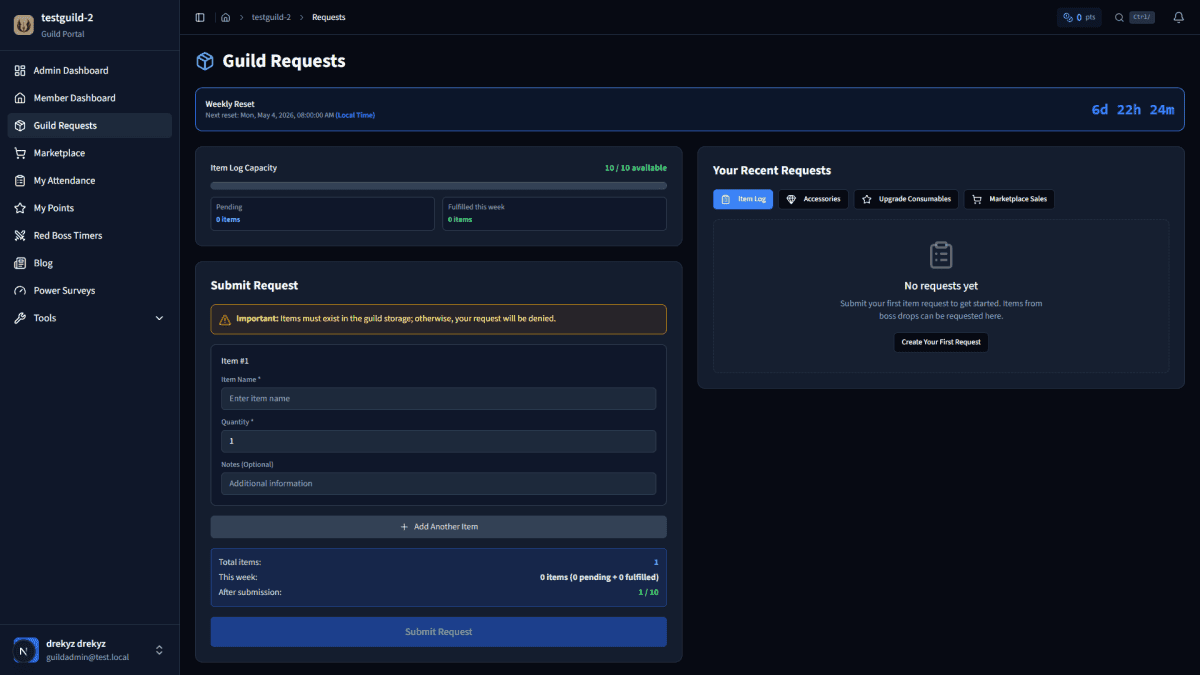
Your guild just got access to Raidium, and you're staring at an empty dashboard. Where do you start? This guide covers the four essential steps that get your guild from zero to fully tracking boss spawns with Discord notifications — all in about 10 minutes.
Here's the path: Discord webhook → Reminder settings → Create a boss → Log your first kill. That's it. Everything else is optional and can wait.
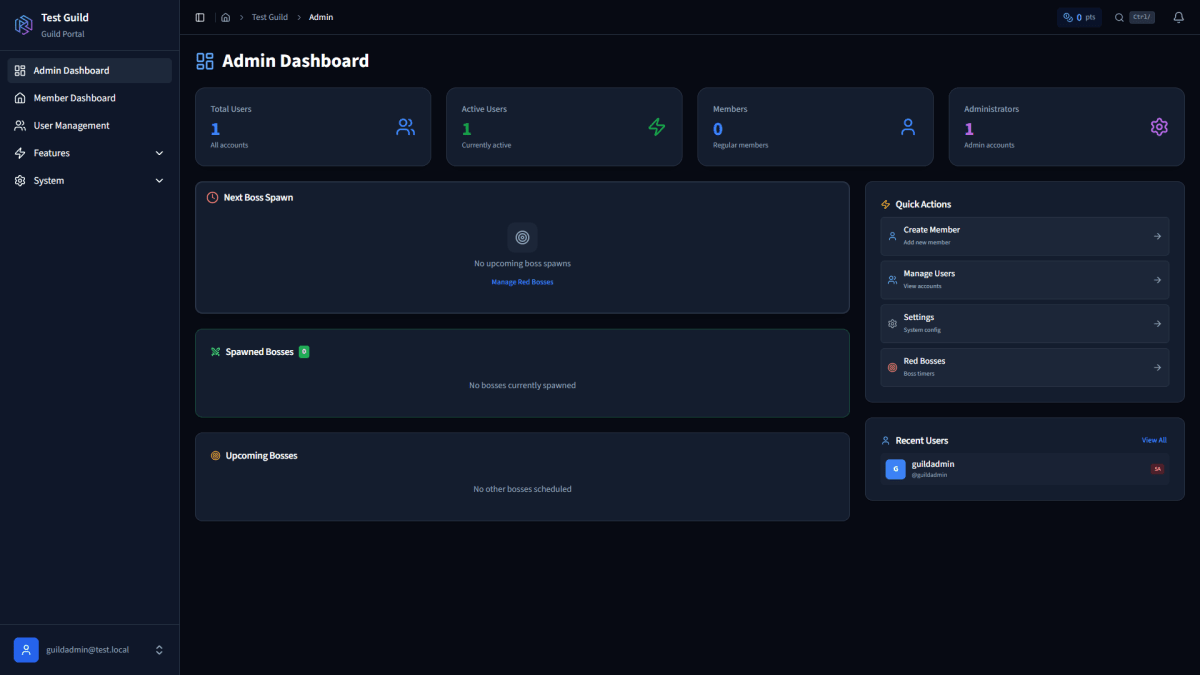
Step 1: Connect Your Discord Webhook
Before Raidium can send boss reminders to your Discord server, it needs a webhook URL. This takes about 60 seconds.
Create a Webhook in Discord
- Open your Discord server and go to the channel where you want boss notifications
- Click the gear icon → Integrations → Webhooks → New Webhook
- Name it something recognizable (e.g., "Raidium Boss Alerts")
- Copy the webhook URL — it'll look like
https://discord.com/api/webhooks/123.../abc...
Paste It Into Raidium
- Navigate to System Settings in Raidium's sidebar (under the System group, wrench icon)
- Find the Discord Webhook URLs section
- Paste your webhook URL and save
You can add multiple webhooks if you want notifications in different channels. Raidium validates the URL format automatically.
Pro tip: Hit the Test Webhook button after saving. You'll see a test message pop up in your Discord channel confirming the connection works. It'll report "Test sent to X/X webhooks" so you know every channel is connected.
Step 2: Configure Your Reminder Settings
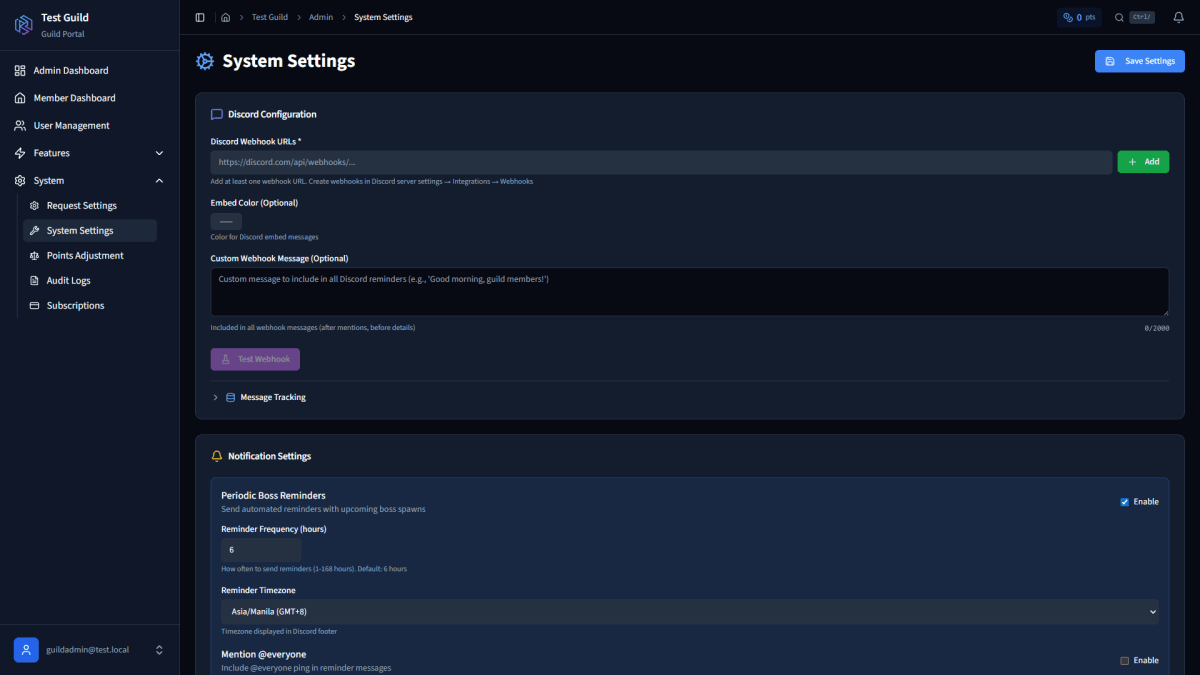
With the webhook connected, tell Raidium how and when to notify your guild. These settings live on the same System Settings page, under Notification Settings.
Periodic Boss Reminders
These are recurring messages that summarize all tracked boss statuses at a regular interval.
- Enable — Toggle this on (it's on by default)
- Reminder Frequency — How often reminders fire, in hours. Default is every 6 hours. Range: 1-168 hours (up to once a week)
- Reminder Timezone — Pick your guild's timezone. Options include Asia/Manila, UTC, US Eastern, US Pacific, and Europe/London
Rally-Up Reminders
These are the clutch notifications — a heads-up right before a boss spawns.
- Rally-Up Reminder Before Spawn — Set how far in advance your guild gets pinged. Default is 10 minutes. You can configure this in minutes (1-120) or hours (1-24)
Who Gets Pinged
- Mention @everyone — Toggle this if you want the full server ping
- Mention Roles — Add specific Discord role IDs to ping only your boss hunters instead of the entire server
Bonus Options
- Show Locations — Include boss spawn locations in reminder messages
- Embed Color — Customize the color of Raidium's Discord embeds (default:
#FF6B6B) - Custom Webhook Message — Add a recurring message to every reminder (e.g., "Rally up, guild. Boss incoming.")
Step 3: Create Your First Red Boss
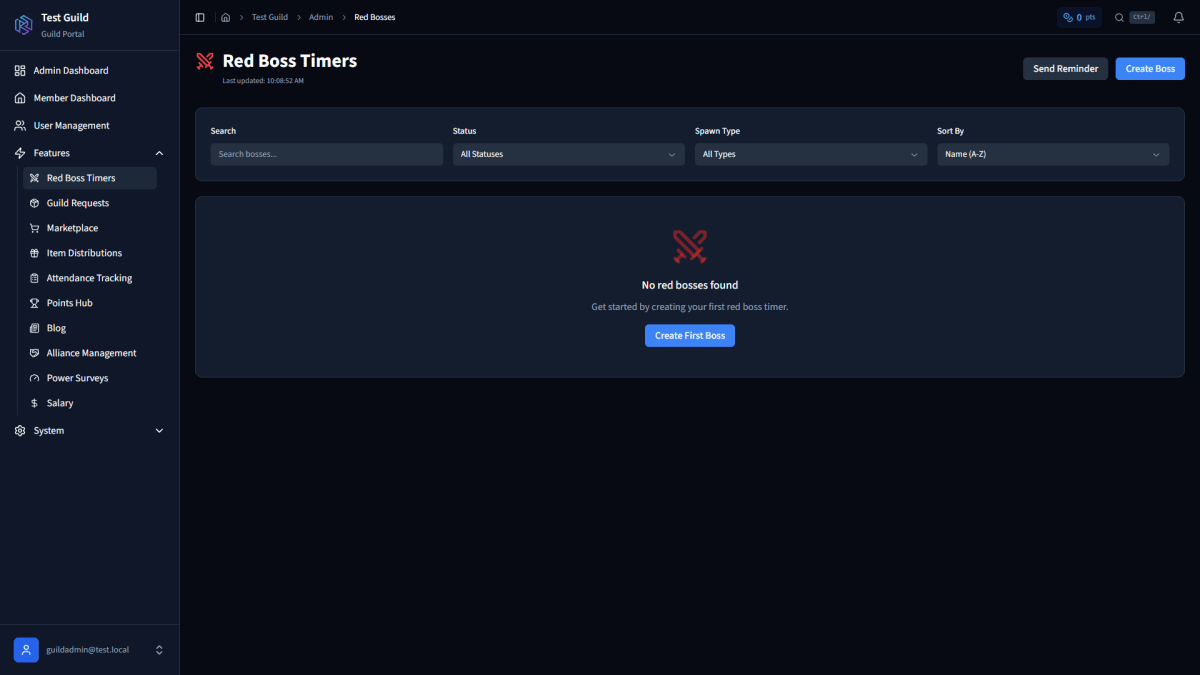
Now for the fun part. Head to Red Boss Timers in the sidebar (under Features, sword icon).
Click Create Boss to open the creation modal. Here's what you need:
Required Fields
- Boss Name — The boss's name (e.g., "Corrupted Dragon", "Ancient Golem"). Max 100 characters.
- Spawn Type — This is the most important choice:
| Spawn Type | How It Works | Best For |
|---|---|---|
| Timer | Respawns X seconds after each kill | Bosses with fixed cooldowns |
| Scheduled | Spawns at specific times every week | Bosses on a set weekly timetable |
| Hybrid | Weekly schedule + timer respawns if killed early | Bosses that follow a schedule but can respawn sooner |
Timer Settings (Timer & Hybrid)
Set the Respawn Time in seconds. For example:
- 2 hours = 7200 seconds
- 4 hours = 14400 seconds
Raidium displays the formatted time (e.g., "2h 0m 0s") so you can verify it looks right.
Schedule Settings (Scheduled & Hybrid)
Add one or more Weekly Schedule entries. Each entry needs:
- Day of the week (Sunday through Saturday)
- Hour (0-23)
- Minute (0-59)
So if your boss spawns every Tuesday and Saturday at 8:00 PM server time, add two entries.
Optional But Useful
- Location — Where the boss spawns on the map
- Description — Any notes about the boss (mechanics, recommended party size)
- Image URL — A picture of the boss for the dashboard card
- Timezone — The timezone used for schedule calculations (defaults to Asia/Manila)
Hit submit, and your boss appears on the dashboard with a live status indicator.
Step 4: Log Your First Kill
Your guild just took down the boss. Time to record it.
Find the boss card on your dashboard and click Kill Now. This opens the kill logging modal.
What Gets Recorded
Raidium automatically captures:
- Kill time — Timestamped to the second
- Killed by — Your username (the person reporting)
Optional Details
- Notes — Any context about the fight ("Close call, healer went down at 20%")
- Items Dropped — Add loot with name and rarity tier:
- Mythical, Legendary, Epic, Rare, Uncommon, Common
Missed the exact moment? Use the Set Time... button instead of Kill Now. This lets you backdate the kill to the actual time it happened — useful when someone forgets to log it immediately.
Once you confirm the kill, three things happen:
- The kill is recorded in the boss's Kill Log with all details
- If the boss uses a timer, the next spawn countdown starts automatically
- If rally-up reminders are enabled, your Discord channel will get a ping before the next spawn
You're Good to Go
That's the complete essentials loop:
- Webhook connects Raidium to your Discord
- Reminders keep your guild informed automatically
- Boss creation sets up what you're tracking
- Kill logging keeps the cycle running
From here, the system runs itself. Bosses respawn on their timers or schedules, reminders fire to Discord, and your guild shows up ready.
What's Next?
Once the basics are humming, explore the rest of Raidium at your own pace:
- Attendance Tracking — Record who showed up for each boss kill with screenshot verification
- Points System — Automatically reward participation (200 points for red boss kills, 10 for guild bosses)
- Marketplace — Let members trade items using their earned points
- Request Queue — Manage gear and item requests with automatic limit enforcement
- Alliance Management — Coordinate with allied guilds for loot rotation
None of these are required to get started. Set them up when your guild is ready for them.